How to Use Threads on Instagram? [Complete Beginner’s Guide 2025]

Use threads on Instagram

Do you know How to use threads on Instagram? Instagram Threads is designed to share text updates and join public conversations. Think of it as a close cousin to Twitter (now X), but deeply integrated with your Instagram network.

Now, if you want to activate this platform, this Instagram Threads guide will walk you through everything you need to know, helping you make the most of Instagram Threads. Follow us for a new experience.

(3) Easy Steps to Use Threads on Instagram


If you’re looking for a way to connect more easily with your Instagram friends, Threads from Meta (the makers of Instagram) is a great option. Here’s how to get started with Threads in three easy steps:


1. Downloading and Setting Up Threads

 Instagram Threads is a standalone app, and to download and set up it, follow the steps below:


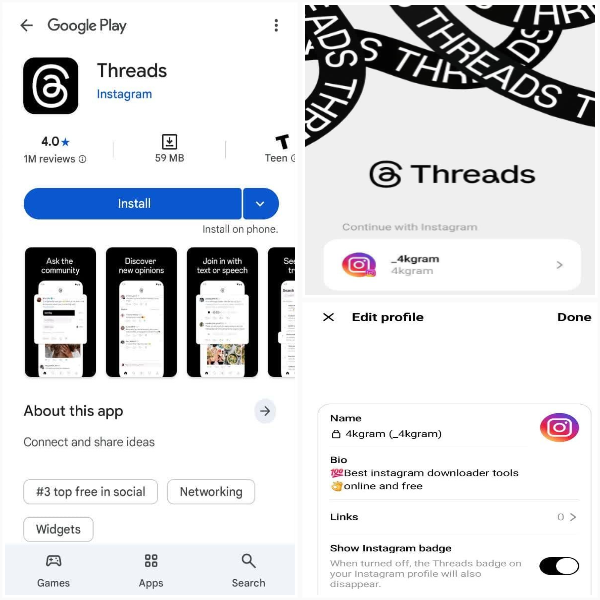
  • You’ll need to download Threads from your device’s app store (iOS App Store or Google Play Store). Search for “Threads, an Instagram app.”


  • Then, log In with Instagram. You’ll be prompted to log in with your Instagram account when you open the Instagram Threads app for the first time.


  • This makes the setup process seamless.


  • If you want to use it on a computer, go to threads.net and use the web version easily.


2. Profile Setup

 Now that you have the Threads in your device, it is turn to setting up the profile:

  • Name and Username: Your name and username will automatically be imported from your Instagram account. You can keep them the same or customize your name for Instagram Threads (your username remains linked to your Instagram).


  • Bio and Link: You can import your bio and link from your Instagram profile or create a new one specifically for Instagram Threads.


  • Profile Picture: Your Instagram profile picture will be used by default, but you can change it within the Threads app.You can also use the Instagram profile downloader for this purpose.


3. Privacy Settings

In this step, you can set up your privacy settings that are important for your account:

  • Public Profile: Anyone on Instagram Threads can see and interact with your posts.


  • Private Profile: Only approved followers can see and interact with your posts. This setting mirrors your Instagram account’s privacy.


  • Following Suggestions: This tool will suggest accounts for you to follow based on your Instagram following list. You can choose to follow all suggested accounts, some or none. You can always follow more people later.


Instagram Threads

Understanding the Instagram Threads Interface

 The Instagram Threads interface is designed to be intuitive and user-friendly, allowing you to navigate through your conversations easily, discover new content, and engage with others.

  • Home Feed (House Icon): This is where you’ll see Instagram conversation threads from people you follow and recommended content.


  • Search (Magnifying Glass Icon): Use this to find other users and topics.


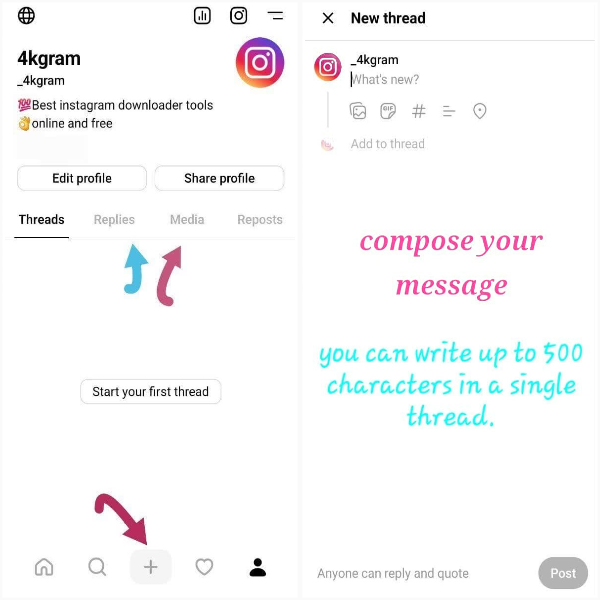
  • New Thread (Pencil and Paper Icon): Tap this to compose a new text post (a “thread”).


  • Activity: You’ll see notifications about likes, replies, mentions, and new followers.


  • Profile (Person Icon): This takes you to your profile, where you can see your threads, replies, and saved items.


How to Creating and Posting Threads?

Instagram messaging Threads are designed for text-first communication, allowing users to share thoughts, updates, and media in a clean, scrollable format.


Create and Share a New Thread:

  • Tap the New Thread” Icon.
  • Compose Your Message: You can write up to 500 characters in a single thread.
  • Add Media: You can attach photos and videos (up to 5 minutes long) to your threads by tapping the paperclip icon.
  • Start a Thread (Multiple Posts): If you have more than 500 characters to say, you can create a series of connected posts (a “thread” in the traditional sense of the word). Tap the “Enter” or “Return” key to start a new part of the thread while composing your first post. These will be grouped for viewers.
  • Who Can Reply: Before posting, you can choose who can reply to your thread including Anyone, Profiles You Follow, and Mentioned Only. Then, you can tap the “Post” button in the bottom right corner.


Instagram Threads feature

  How to Interacting with Threads?

 Users can easily follow Instagram chat threads, reply to specific comments, and keep the conversation flowing in a threaded, chronological format.


  • Liking: Tap the heart icon below a thread to like it.
  • Replying: Tap the speech bubble icon to reply to a thread. Your reply will appear as a new thread linked to the original.
  • Reposting (Equivalent to Retweeting): Tap the two circular arrows icon. You’ll have two options: repost and quote.
  • Sharing: Tap the share icon (airplane) to add to the story, post to feed, copy links, and share via other apps.


  Managing Your Threads Experience

 If you’re looking for a more streamlined way of organizing messages on Instagram, Threads provides a cleaner interface focused on public and text-based interactions.

  • Following and Unfollowing: You can follow and unfollow accounts like on Instagram. Tap the “Follow” button on someone’s profile or your feed.


  • Blocking and Reporting: If you encounter unwanted content or users, you can block or report them. To access these options, tap the three dots (…) in the top right corner of a thread or profile.


  • Muting: If you want to stop seeing someone’s posts without unfollowing them, you can mute their account.


  • Privacy Settings: You can adjust your profile privacy anytime in your Instagram Threads settings.


  • Notifications: Manage your Instagram messaging features and notifications in the app’s settings to control what alerts you receive.


Instagram messaging Threads

Key Features and Differences from Instagram

While Instagram Threads shares some similarities with Instagram, it has some eye-catching differences with it including:

  • Text-First Focus: Instagram Threads is primarily about text-based conversations, although you can include media.


  • Character Limit: Threads have a 500-character limit per post (compared to Instagram’s caption limit).


  • Public Conversations: This program is designed for more open, public discussions.


  • Integration with Instagram: Seamless login, shared username (with the option for a different display name), and easy sharing between the apps.


  • No Direct Messages (DMs): Instagram Threads does not have a separate direct messaging feature. You’ll still use Instagram direct message threads through the main Instagram app for private conversations.


  • Focus on Real-Time Updates: Like Twitter, Threads on Instagram is well-suited for sharing quick thoughts and news and engaging in timely discussions.


In Conclusion

Instagram Threads offers a new way to connect and share through text-based conversations, deeply integrated with your existing Instagram network. By learning to use Threads on Instagram and exploring features like Instagram threaded chats, you can engage more meaningfully, share your thoughts, and discover new perspectives.

Have you tried Threads yet? What do you think about the experience so far? Which Instagram Threads feature do you find most useful? Are you using it differently than Instagram DMs? Drop your thoughts in the comments about “How to use threads on Instagram?” and know that we’d love to hear more tips from you.


How do Instagram Threads work?

Threads let you post text updates, photos, or videos in a feed-style format, similar to Twitter, connected to your Instagram account.


What is the point of Threads on Instagram?

To share thoughts and join public conversations through short-form content.


What is the difference between Instagram and Threads?

Instagram focuses on visual content; Threads is text-first and built for real-time discussions.


Do Instagram Threads use hashtags?

Hashtags aren’t clickable yet, but people use them for visibility and style.


How do I put Threads on Instagram?

Use the share button in Threads to post to your Instagram Story or Feed.
4 1 vote
Article Rating
Subscribe
Notify of
guest
0 Comments
Oldest
Newest Most Voted
Inline Feedbacks
View all comments
0
Would love your thoughts, please comment.x
()
x