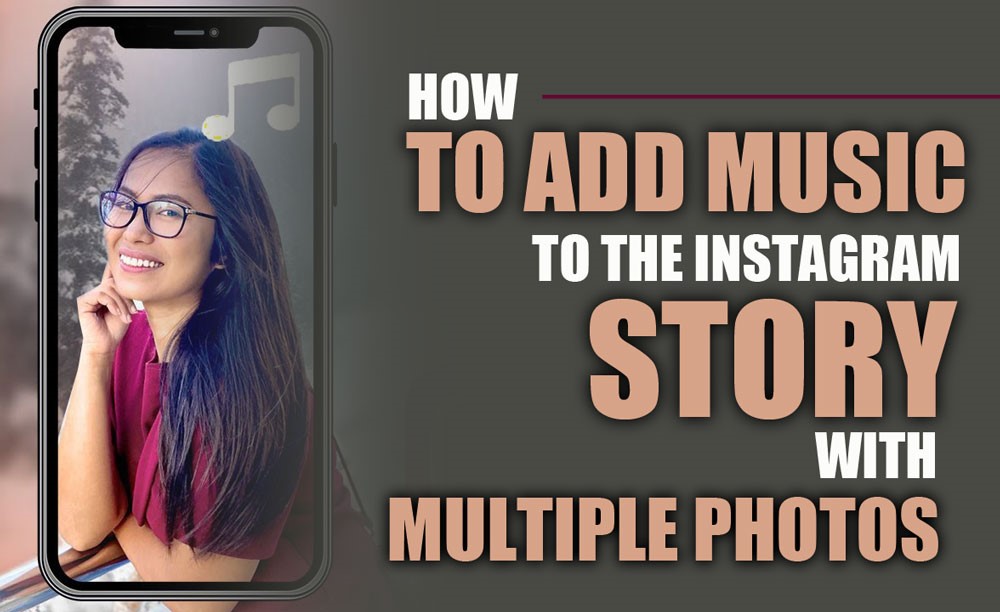
How to Add Music to an Instagram Story with Multiple Photos? [A Step-by-Step Process]

How to add music to the Instagram story with multiple photos isn’t just a feature; it’s the pulse of your Story. Without it, your meticulously crafted photos will be a bust, drowned in an ocean of silence while your competition shines in the spotlight. Imagine your followers swiping by. no noise. no feeling. no need to stay. Frightening, right?
We’ll show you an Instagram story tutorial to effortlessly layer music over many photos and make memories that last forever. We’ll reveal sneaky, creative Instagram tips the pros use to turn ordinary stories into obsessions. Ready to break the silence and make your stories impossible to ignore? Let’s dive in before another follower scrolls away for good.
Simple Steps to Add Instagram Story with Music and Multiple Photos
To continue, we’ll show you how to easily add music to your Instagram stories and combine multiple photos to create engaging and impactful content.
1. Using the Music Sticker in Story Mode
This is the most direct and widely used method to Add music to the Instagram story with multiple photos:
1.Open Instagram Story Mode: Launch the Instagram app on your smartphone or tablet. From your main feed, swipe right or tap the “+” icon at the top left corner and select “Story” from the options at the bottom.
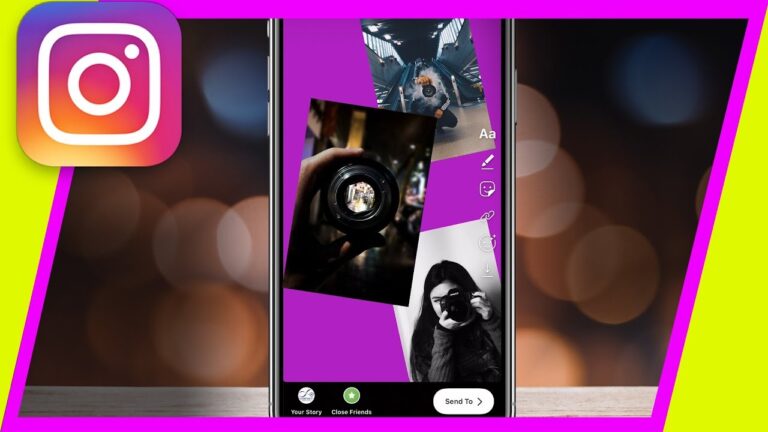
2.Select Multiple Photos: There are a few ways to select multiple photos for your Story:
- Grid Layout: Tap the grid icon to view your photo library and select up to 10 photos for your Story in sequence.
- Camera Roll Preview: Tap the “+” icon below the capture button to open your full library and choose multiple photos.
- Layout Feature: Use the “Layout” option in Story mode to combine multiple photos into one frame with customizable sections.
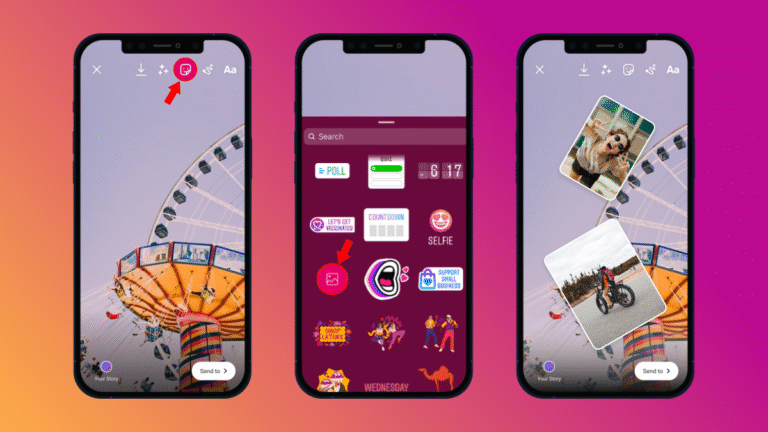
3.Access the Stickers Menu: Once you’ve selected your photos, a preview of the first photo will appear in your Story. To add music to photos, swipe up on the screen or tap the sticker icon (a square with a smiley face) at the top of the screen.
4.Select the “Music” Sticker: In the sticker’s menu, scroll through the options until you find the “Music” sticker. Tap on it.
5.Choose Your Music: You will now be presented with Instagram’s music library. You can browse through different sections:
- For you: Discover trending and popular songs that Instagram recommends.
- Browse: Explore music by genre, mood, or theme.
- Search: Use the search bar to find specific songs, artists, or keywords.
- Saved: Access previously saved songs for easy selection.

1.Customize Your Music Clip: Drag the waveform slider to choose a 5-15 second song segment for your Story.
2.Adjust Sticker Style (Optional): Depending on the song and your preferences, you might have options to:
- Display Lyrics: Tap to choose from different lyric styles (word-by-word, line-by-line, with background).
- Show Album Art: Display the song’s album cover instead of the lyrics.
- Change Sticker Size and Placement: Pinch to resize and drag the music sticker to your preferred position.
3.Arrange Your Multiple Photos: Swipe through your multiple photos after adding the music sticker. Rearrange them by tapping and dragging to your preferred order, with music playing continuously in the background.
4.Add More Elements (Optional): Enhance your Story with stickers (polls, questions, GIFs), text, drawings, and filters to personalize each photo.
5.Share Your Story: When you’re ready, tap “Your Story” to share with followers or use “Close Friends” or direct messages to send it to specific people.
2. Creating a Carousel Post and Sharing Your Story
While primarily designed for feed posts, you can create a carousel post with multiple photos and music and share it with your Story.
1.Create a Carousel Post: Tap “+” > “Post” > “Select multiple” > choose photos > “Next.”
2.Apply filters to individual photos or all, then tap “Next.”
3.Add Music: Tap “Add Music,” choose your song, and select the desired segment.
4.Share Carousel: Add a caption, then tap “Share” to post.
5.Share to Your Story: Tap the share icon on your carousel post > “Add post to your story” to create a story preview.
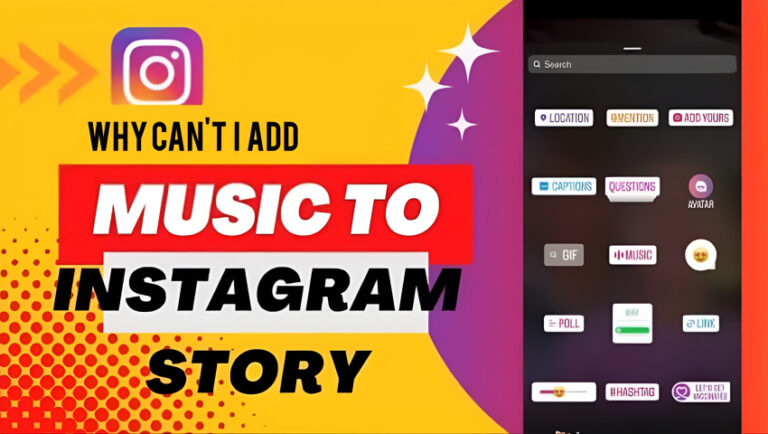
Why Can't I Add Music to Instagram Story? [Troubleshooting]
Sometimes, you might encounter issues when trying to Add music to the Instagram story with multiple photos. Here are some common reasons and troubleshooting steps:

Music Sticker Not Available
- Regional Restrictions: Music stickers may not be available in some regions; a VPN may help.
- Business Accounts: Limited to royalty-free music; switch to a Creator or personal account for more options.
- Branded Content: Due to regulations, music access may be restricted for promotional stories.
- Outdated App: Update your app for the latest features and bug fixes.
- App Cache and Data: Clear or reinstall the app to fix glitches.
- Temporary Glitches: Wait and try again later if Instagram experiences server issues.
No Music Suggestions or Search Results
- Internet Connection: Ensure a stable Wi-Fi or cellular connection to stream music.
- Search Terms: Use accurate search terms when looking for a specific song.
- Library Limitations: Some songs may be unavailable due to licensing restrictions.
Music Not Syncing or Playing
- App Version: Again, ensure your app is up to date.
- Device Issues: Restart your phone or tablet to resolve any temporary software glitches.
- Volume Settings: Check your device’s volume settings to ensure the audio is not muted.
Important Considerations [Copyright]
Be mindful of copyright when adding music to Instagram stories. Use music from Instagram’s licensed library for personal use only; commercial use without proper authorization can lead to copyright issues.
- Personal Use: Music in Instagram Stories is for personal, non-commercial use only.
- Business Use: Business accounts should use royalty-free music to avoid copyright issues.
- Creator Accounts: More music flexibility than business accounts, but still bound by copyright rules.
- Royalty-Free Music: Use royalty-free music for commercial or promotional content.
- Attribution: Some royalty-free music requires attribution; always check license terms.

Conclusion
By following these Instagram story tips and the correct steps, you can effectively know how to add music to your Instagram story with multiple photos, making your content more engaging and enjoyable for your audience and making your content stand out with custom Instagram stories.
Remember, using Instagram features creatively and following the correct steps will ensure your stories remain captivating.
Have you tried adding music to your multi-photo stories yet? Share your experience with us, and if you run into any problems or have questions, feel free to ask! By contributing, let’s keep the conversation going and make your stories stand out!
If you hear a song you love in the saved stories of an Instagram page, the Instagram highlight downloader can help you save it easily.
How do you keep music playing across multiple images on Instagram?
Use Instagram’s “Story” feature and add music to each slide, keeping it consistent.
How do I put a photo over music on an Instagram story?
Add a photo to your Story, then use the music sticker to overlay the song.
Why can’t I access all music on Instagram stories?
Music availability may vary by region due to licensing restrictions.
Can I add music to an Instagram post with multiple photos?
Music can only be added to Stories, not multi-photo posts.
Can you add music and keep the original audio on an Instagram story?
You can mix music with the original audio in a story by adjusting the audio levels.
Recent Posts