How to Get Primary & General Messages on Instagram in 2025?

Are your Instagram DMs starting to feel like an endless flood? Picture this: important business messages getting buried, follow-ups slipping through the cracks, or casual chats mixed in with everything else. Stressful, right? “Relax, we’ve got the magic trick to whip your inbox into shape in no time!
In this guide, we’ll walk you through how to get Primary & General messages on Instagram, so you can prioritize key conversations, handle requests smoothly, and regain control over your DMs. Ready to stop drowning in messages? Let’s dive in!
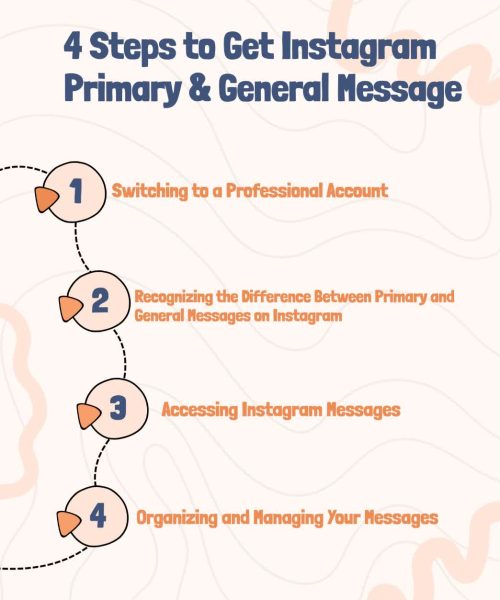
(4) Steps to Get Instagram Primary & General Messages in 2025
Instagram’s direct messaging system has become an essential tool for communication, especially if you’re managing a business or creator account. But what happens when you start receiving messages that you want to categorize for better organization? That’s where Instagram’s Primary and General inbox tabs come into play. Let’s see how.
1. Switching to a Professional Account
Before you can start organizing your DMs and get Primary & General messages on Instagram, you’ll need to switch your account type to Professional (either a Creator or Business account).
Whether you’re a business owner, influencer, or content creator, this step is essential to gain access to advanced features.
- Open the Instagram App and go to your profile by tapping on your profile icon in the bottom-right corner of the screen.
- In the top-right corner of your profile page, tap on the three lines (also known as the hamburger menu).
- Scroll down and tap on Account.
- Select Switch to Professional Account.
- Choose either a Creator or Business account based on your needs. For creators or influencers, the Creator account is recommended.
- Follow the prompts to complete the process.
Once you’ve switched to a professional account, you’ll unlock additional features for your Direct Messages, including the ability to sort them into Primary and General tabs.
2. Recognizing the Difference Between Primary and General Messages on Instagram
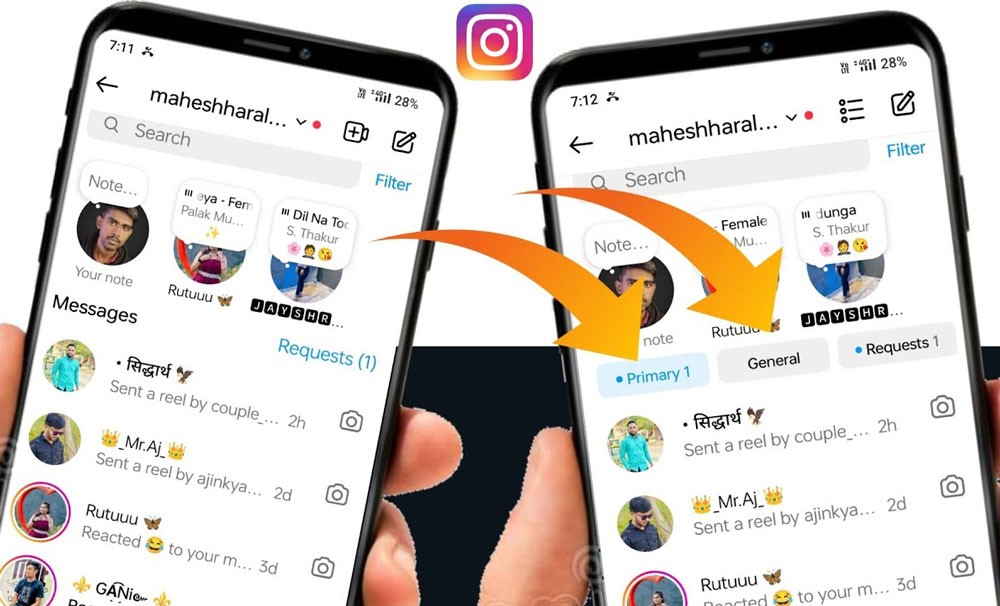
Once your Professional Account is set up, it’s important to understand how the platform organizes your messages into two main categories, Primary and General, as Instagram direct message tabs.
These tabs help you streamline communication by separating important conversations from those that are less urgent or casual. Here’s a breakdown of each tab’s function and how to use it effectively.
Instagram Primary Messages Tab
Your “priority zone.” This is where important conversations are stored. Typically, you’ll keep messages from your loyal followers, business partners, and collaborators here. Notifications are enabled for this tab by default, so you don’t miss any important interactions.
Instagram General Tab Messages
Your “read-later list.” The General tab is where non-urgent or less important messages go. This includes casual chats, non-priority messages, or spam inquiries. Notifications are turned off for this tab by default to minimize distractions.
3. Accessing Instagram Messages
Now that you’ve switched to a Professional Account, it’s time to manage your Direct Messages (DMs) effectively to get Primary & General messages on Instagram easily. This step will show you how to navigate your inbox, categorize messages, and keep your conversations organized for a more streamlined experience.
- Go back to the home screen by tapping on Home at the bottom-left of the app.
- Tap on the message’s icon (paper airplane) in the top-right corner of the screen to open your inbox.
- At this point, you’ll see two separate tabs, Primary and General.
4. Organizing and Managing Your Messages
With your inbox now separated into Primary and General, you can easily start managing Instagram Message Tabs. Here’s how to do that:
- To move a message from the Primary tab to General (or vice versa), simply swipe left on the conversation and select the Move to General option. This helps you prioritize more urgent conversations and keep track of less important ones without feeling overwhelmed.
- You can also access the Message Requests section, where messages from users you don’t follow will be placed. This section includes a Hidden Requests folder for messages that Instagram marks as spam.

How to Unlock Your Instagram Inbox’s Full Potential?
To get Primary & General Messages on Instagram efficiently, it’s important to manage your DM inbox. Start by regularly checking your general messages, as some non-urgent but important conversations may be there. Let’s check out some of the most important Instagram message organization tips, too:
- Make use of Message Requests to review messages from non-followers, and if they’re relevant, move them to the Primary tab. If there are chats you want to avoid seeing but don’t want to delete, mute or archive them to reduce distractions.
- It’s also helpful to set response time goals, aiming to reply to priority messages within 24 hours. Using quick replies for frequently asked questions (FAQs) can save time and keep your inbox organized. Don’t forget to leverage Instagram’s “Unread” filter to easily find messages that need your attention.
- For even more control, consider switching to a Creator Account if you’re an influencer, or a Business Account if you’re running a brand. This approach will help you stay productive and on top of your messages.
- Enhance customer service by responding directly to inquiries and adding a personal touch in your interactions. Don’t overlook Message Requests; check them for potential collaborations or business opportunities. Lastly, consider using automation tools to streamline your DM management and improve efficiency.
How to Customize Your Instagram Message Settings?
To ensure your inbox is organized according to your preferences, you can easily manage your Instagram direct message customization by following these simple steps. This allows you to prioritize important conversations, filter out less relevant messages, and streamline your overall messaging experience.
By setting up Instagram message prioritization, you can choose to receive notifications only for messages that matter most to you, reducing distractions and keeping your inbox clutter-free
1.Go to Your Profile: Tap your profile picture (bottom-right).
2.Access Settings: Tap ☰ → Settings.
3.Navigate to Notifications: Select Notifications → Messages.
4.Adjust Message Settings: Customize alerts for Primary & General messages. All messages, only from people you follow, or none, as an Instagram message filtering option.
5.Modify Preferences:
- Enable/disable Push Notifications, adjust vibration, and set alerts for group chats.
- Manage Message Requests notifications for users you don’t follow.
6.Filter & Organize Requests: Sort into Top Requests (relevant) and Hidden Requests (spam/flagged).
7.Mute Conversations: Avoid notifications from specific chats without blocking or unfollowing.
Customizing your settings allows you to get Primary & General messages on Instagram with ease, helping you maintain a clean and efficient inbox.
What Are the Best Tools to Organize Instagram DMs Like a Pro?
Tired of messy inboxes and missed messages? Here are smart tools to help you manage Instagram DMs easily:
- Meta Business Suite integrates Instagram and Facebook DMs, allowing you to automate common responses and track performance. It’s a great tool for staying responsive, even when offline, by setting up automated replies.
- ManyChat automates DMs and captures leads using keyword-based responses and custom conversation flows. It’s perfect for handling repetitive queries while maintaining a personalized experience.
- Hootsuite helps manage DMs alongside social content, offering team collaboration, engagement tracking, and scheduled follow-ups. It’s ideal for ensuring timely responses with message reminders.
Conclusion
Mastering your Instagram DM organization isn’t just about keeping things organized. It’s about creating meaningful connections and elevating your social media presence. You can turn your inbox into a well-oiled engagement machine by harnessing the power of Instagram’s Primary and General tabs and boosting your efficiency with tools.
Now it’s your turn! How do you keep your Instagram messages under control and make the most of your DMs? Share your top tips about “How to get Primary & General messages on Instagram?” in the comments below, and let’s get the conversation rolling!
How to set primary and general DMs on Instagram?
You can open a conversation, tap on the options, and select “Move to Primary” or “Move to General.”
Why are my primary requests and general messages not showing on Instagram?
Instagram Primary and General may not show if your app isn’t updated, your messages are filtered, or your Account has a setting issue.
Does Instagram still have a general message inbox?
Yes, Instagram still has a general message inbox, allowing you to organize messages apart from your Primary inbox.
How to turn off general messages on Instagram?
To turn off General messages, you can either move conversations back to Primary or adjust your inbox settings to prevent messages from being categorized as General.
Is there an Instagram general messages read receipt?
Instagram doesn’t offer a separate read receipt for General messages, but it shows when the message is seen, like in Primary DMs.
Recent Posts