How to Create and Manage Scheduled Posts and Reels on Instagram?
On Instagram, timing is everything. If you post at the wrong moment, your best content gets buried under a flood of selfies, memes, and trending Reels. You need to know how to create and manage scheduled Posts and Reels on Instagram when seeing dozens of comments, new followers, and DMs.
Otherwise, your engagement will drop if you miss a day, and your followers will forget you. Welcome to the world where Instagram works for you, even offline. Want to know its secret? Could you stick with us?

How to Schedule Instagram Posts and Reels on Instagram Like a Pro?
Instagram Content Management, like a pro, requires more than just posting on the fly. You will need something more. Let’s learn how to Schedule Posts and Reels on Instagram with third-party tools or the App’s built-in feature to save time and boost engagement. Perfect for businesses and creators!
• Direct Scheduling in Instagram App (Mobile Only)
You can Schedule Posts and Reels on Instagram directly in the App through your mobile. But you will need to switch your account to a Professional account first.
1.Set Up a Professional Instagram Account
- Switch to a professional account via Settings > Account types and tools.
- Choose your business category and add contact info to unlock business tools.
2.Create and Customize Content
- Tap the + icon to create a new post or reel.
- Add captions, filters, music, and other creative elements.
3.Schedule Your Content
- After creating your post, tap Next (iPhone) or the arrow (Android)
- In Advanced settings, select “Schedule this post.”
- Choose the date and time (up to 75 days in advance) and hit Schedule.
- Note: You can’t view or manage multiple scheduled posts in one place (at once).
• Scheduling with Meta Business Suite (Developed by Meta & Formerly Facebook)
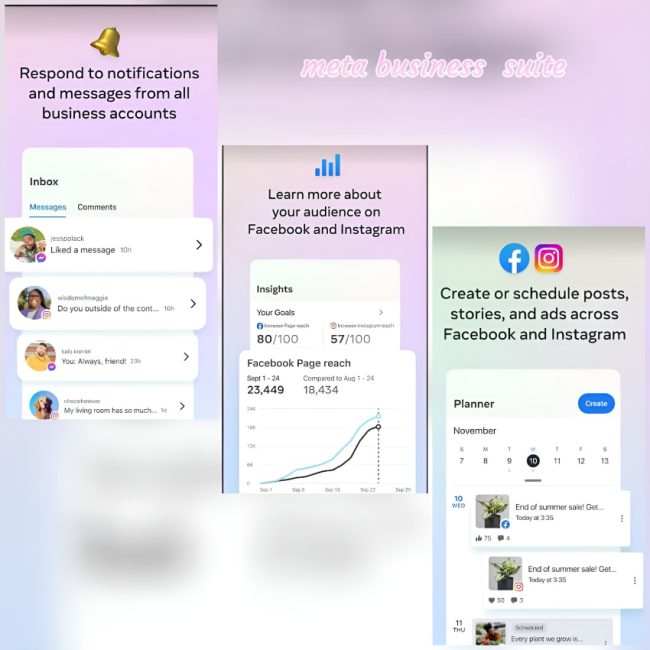
Meta Business Suite is a powerful Facebook and Instagram Post Scheduling tool available on a single dashboard. It includes a visual calendar to see all your planned posts at a glance. These are its advantages for Instagram Stories and Reels Scheduling:
- Unified Management: Manage multiple Facebook and Instagram accounts in one place.
- Advanced Scheduling: Schedule posts and stories for optimal engagement.
- Instagram Post Previews & Analytics: Preview content before posting and analyze performance for better strategy.
- Ad Management: Seamlessly manage both organic posts and ads.
- Story Scheduling: Schedule stories, a feature not offered by platforms like Buffer.
- Message & Comment Management: Handle communication across both platforms.
How to Schedule Posts and Reels on Instagram on Meta Business Suite?
- Go to business.facebook.com and log in to your business account.
- Make sure your Instagram is linked to Meta Business Suite.
- Head to the Planner or Content tab.
- Click Create Post.
- Choose your publishing platforms (Instagram, Facebook, or both).
- Add your media files, write your caption, and include any links.
- Under scheduling options, enable Set date and time.
- Pick when you want the post to go live.
- Click Schedule to confirm.
• Buffer (Third-Party Tool)
Buffer, as a third-party social media management tool, helps you to Schedule Posts and Reels on Instagram easily, offering flexibility through two primary publishing options: Automatic and Notification-based.
You run this tool on a Professional account (business or creator) or a Personal account.
1.Publishing ptions:
- Automatic Publishing (Ideal for Business and Creator accounts):
- Posts are published automatically.
- Supports features like First Comment, Hashtag Manager, User Tagging, Shop Grid Links, and Location Tags.
- Automatic Publishing (Ideal for Business and Creator accounts):
- Notification Publishing (Required for specific features or personal accounts):
- For features like Music, Stickers, Story Links, Product Tags, and Collaborator Posts.
- Media that doesn’t fit Instagram’s aspect ratio will default to notification publishing.
- Notification Publishing (Required for specific features or personal accounts):
2.Steps for Creating a Post, Reel, or Story:
- Select Your Account: Choose the Instagram account you want to publish.
- Open the Composer: Click to start a new post from your queue.
- Choose the Content-Type: Select between Post, Reel, or Story.
- Upload Media: Add images or videos (max 100 MB).
- For Carousel posts, only images are supported.
- All carousel images will be cropped to match the format of the first selected image.
- Write Your Caption: Type or paste your caption. For Stories and Reels requiring additional features, use Notification Publishing.
- Choose Publishing Mode: Select either Automatic or Notify Me. If incompatible features (like stickers or music) are added, Buffer will automatically set the mode to Notification Publishing.
- Customize (Optional):
- Thumbnail: For videos, choose a cover frame by dragging the slider.
- Location: Type the name of an area or Facebook page.
- Tag Users in Photos: Click on the image, select a spot, and enter the users’ @handle (up to 20 tags allowed).
- Select Your Account: Choose the Instagram account you want to publish.
3.Extra Tools and Features:
- Hashtag Manager (Paid Plans Only): Save and organize groups of hashtags for reuse.
- First Comment Scheduling (Paid + Professional Accounts Only): Schedule a first comment to post simultaneously with your post or reel (useful for additional hashtags or promotional content).
- Shop Grid Links: Add Shop Grid links to direct users to your products.
• Later (Third-Party Tool)
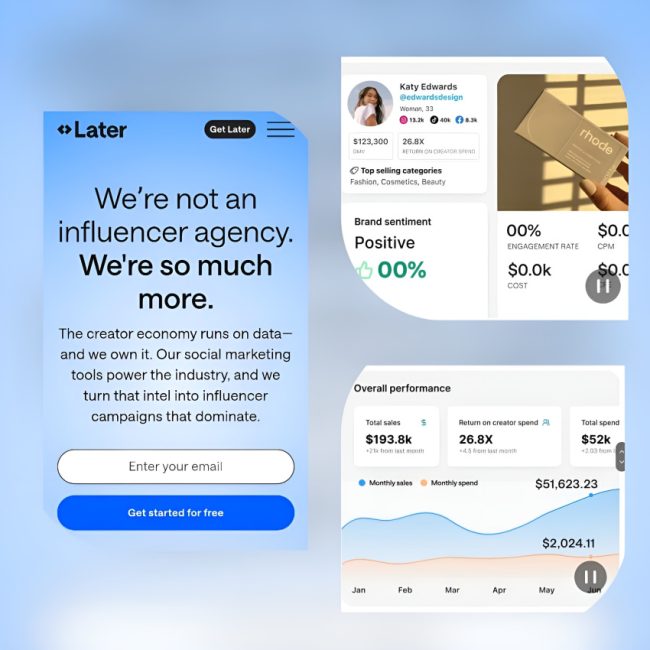
Later is a social media management tool that uses a visual calendar to help you plan, schedule, and publish Instagram content (Posts, Stories, and Reels).
It offers features like auto-scheduling, content editing, grid preview, and the best time to post suggestions, making it ideal for creators and businesses. Key Features of Later:
- Visual Content Calendar: Later’s drag-and-drop content calendar is its standout feature. Unlike Buffer, which uses a more text-based approach, Later lets you plan your Instagram posts visually. You can see your feed as it will appear, allowing for better visual alignment.
- Hashtag Suggestions: Later provides automatic hashtag suggestions based on the content you upload, which helps increase visibility and engagement. Buffer does not offer this automatic feature for hashtags.
- Linkin.bio: Later offers Linkin.bio, which turns your Instagram feed into a clickable landing page. This is a great way to drive traffic to external sites directly from Instagram posts, which Buffer doesn’t provide as a built-in feature.
- Instagram Stories & Reels Scheduling: Later, you can schedule Instagram Stories and Reels, which Buffer is currently limited to. While Buffer does support Instagram posts, Later’s ability to manage Stories and Reels sets it apart as a more comprehensive Instagram tool.
- Media Library: Later has a built-in media library where you can store and easily manage your images, videos, and GIFs. This feature helps keep your content organized for future scheduling. Buffer allows you to upload media, but the library isn’t as robust or organized as Later’s.
- Post Preview & Feed Layout: With Later, you can see exactly how your Instagram feed will look before posting, allowing you to maintain an aesthetic layout. Buffer doesn’t have this feature, so users need to manually visualize how posts will look.
- Analytics: Later, it provides post analytics to track your performance and engagement metrics, helping you optimize your content. While Buffer offers analytics, Later’s Instagram-focused analytics are tailored more to Instagram growth strategies and visual content.
How to Schedule Posts and Reels on Instagram with Later?
- Sign up for Later and connect your Instagram account.
- Upload your content to the media library.
- Drag and drop content into Later’s visual content calendar to schedule posts.
- Select the time and date for each post to go live. Later, it will automatically post at the scheduled time.
Final Thoughts
Think about waking up to fresh likes, comments, and shares from a post you scheduled days ago. That’s the power of smart Social Media Scheduling. The tools we mentioned don’t just save time; they build consistency, drive engagement, and make your brand look effortlessly professional.
Which Instagram scheduling tool do you swear by, and have you tried excelling at creating and managing scheduled Posts and Reels on Instagram? Share the most significant wins or the challenges you’ve faced!
Finally, if you like the captions and hashtags of a post, the Instagram caption downloader tool can help you. Additionally, to download the Reels you’re interested in, you can use the Instagram Reels downloader tool.
How to Schedule Reels on Instagram?
You can do this directly in the Instagram app or through the abovementioned tools.
Can you schedule Reels on Meta Business Suite?
Meta Business Suite allows scheduling Reels with advanced features like a visual calendar and performance previews.
How do you Schedule Posts and Reels on Instagram from mobile?
After switching to a Professional account, you can schedule posts directly from the Instagram mobile app via Advanced Settings.
How do you use Meta Business Suite to schedule Instagram posts?
You can use this method by going to “Create Post,” selecting Instagram, adding your content, setting the date and time, and clicking “Schedule.”
How is scheduling Instagram posts, reels, stories, and notifications done?
This can be done using tools that allow you to set the desired publish time and date.
Recent Posts