How to turn off Instagram notifications for other people’s posts?
When it comes to “How to Turn Off Instagram Notifications for Other People’s Posts?” maybe you ever get the impression Instagram is running your day instead of the other way around? Endless notifications from other people’s posts can creepily undermine your focus and calm.
But what if you could tune out the noise without missing out on what counts? In this fast-paced guide, we will show you how to take back control by turning off those distracting notifications, no drama, just calm. Reclaim your scroll? Let’s do it.
How Can I Stop Instagram from Notifying Me about Other People's Posts and Reels? (Mobile & App)
Instagram sends notifications about new posts to keep you updated on your feed. However, you can personalize, mute, or turn off Instagram post alerts with the instructions below.
There are two ways to turn off Instagram alerts if you’re sick of them and want to stop using them altogether:
• Mute All Instagram Notifications Using Your Phone Settings
You can turn off Instagram push notifications (Instagram updates alert) entirely on both iOS and Android devices:
Open your phone’s Settings.
Find and select Instagram (under Apps on Android or Notifications on iOS).
Choose to:
Turn off all notifications
Mute notifications (no sound or lock screen alerts)
Or customize which notifications you receive.
• Instagram App Notification Settings
You can also turn off all notifications in the Instagram app. With the help of this feature, you can temporarily stop receiving notifications:
Visit the page for your Instagram profile.
In the upper-right corner, tap the three horizontal lines representing the menu.
To access the Notifications section, first open Settings.
To turn off every notification, tap Pause All.
Choose the break length (15 minutes, 1 hour, or 8 hours).
Can I Turn Off Specific Instagram Notifications? (like Posts, Stories, or Likes)?
Instagram gives you the option to personalize notifications if you would rather restrict the kinds of alerts you receive rather than deactivate all of them:
Select Settings from the three dots menu that appears on your profile page.
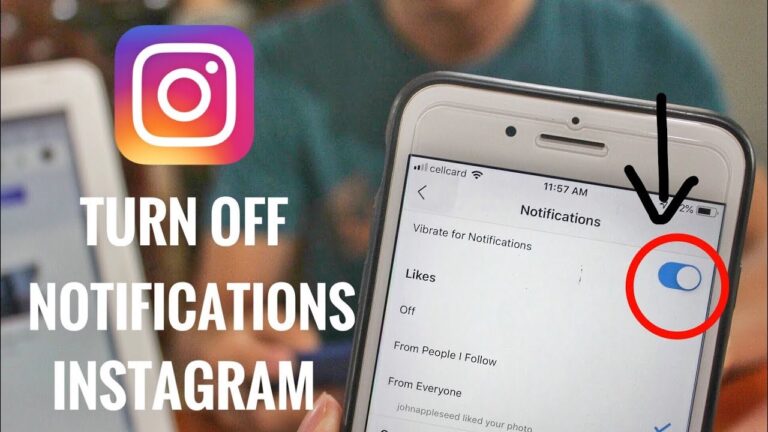
Toggle off particular updates in the Notifications section.
Likes, Comments, and Follows
Live Videos
Story and Post Notifications
Suggested Accounts
How Can I Mute Notifications for a Specific Instagram User?
You can turn off notifications for posts, stories, and reels from particular users without unfollowing them if you’re sick of seeing them:
Visit the user’s profile page.
Press the bell symbol.
Turn off notifications for Lives, Stories, or Posts.
If you manage multiple Instagram accounts (Personal and business), you can modify notifications for each account separately:
To modify an account, switch to it.
Go to Settings and select the Notifications section.
If you wish to turn off notifications for that account or change settings for particular notification kinds, choose Pause All. In this manner, you can keep updates for your account active while muting notifications for your business account.
Can I Turn off Instagram Notifications from a Computer Web Browser?
Turning off notifications on Instagram can be done directly from the desktop version if you use a web browser:
Go to your profile.
Click Settings.
Go to Push Notifications and turn off the ones you don’t want.
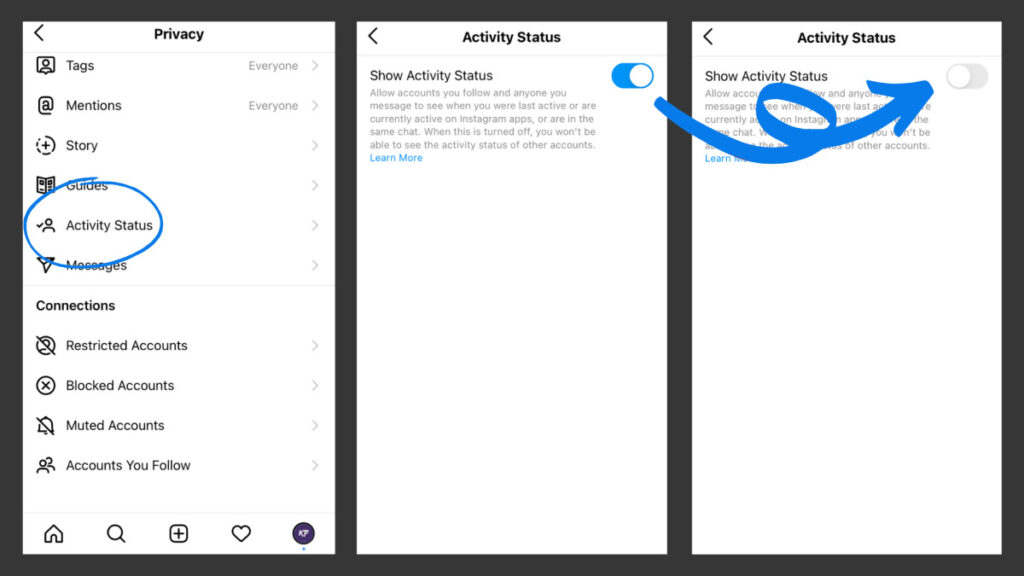
What Happens If I Turn off Instagram’s Active Status Notifications?
Instagram introduced a “quiet mode” that automatically responds to direct messages, switches the profile’s activity status to “In quiet mode,” and pauses notifications.
How to Turn Off Active Status on Instagram?
To enable Quiet Mode on Instagram,Go to Settings > Notifications > Quiet Mode and toggle it on.
Instagram also offers tools to help manage your time on the app, including a dashboard that displays the amount of time users have spent on the app, a customizable daily time alert, and the option to mute push notifications. Instagram offers a feature that lets you manage your time on the app.
How to active personal dashboard?
Go to Your Activity in your profile.
Set a daily time limit and restrict push notifications if desired.
Solving Common Complaints About Reel Notifications
Instagram’s push for Reels is widely viewed as intrusive, and users find it challenging to personalize their experience due to the absence of applicable notification controls for Reels.
• Are There Hidden Settings to Control Instagram's Reel Notifications on Android?
For Android users, Instagram provides more options for controlling notifications. If this is also your problem, consider this:
1.Open the Instagram app, navigate the Settings section, and select Notifications.
2.Look for an option under Reels or Live and Reels to manage Instagram notifications about recently uploaded Reels.
3.Turn off options like “Reels Daily Digest” or Recently Uploaded Reels.
If these settings are unavailable, a workaround is to long-press the notification when it appears and select “Turn Off Notifications.” This will help prevent spammy notifications from being received from random accounts.
• Is There a Workaround for Disabling Instagram's Reel Notifications on iPhone?
After recent app updates, iOS users have noticed that the Reels settings option has vanished even though some options were momentarily available.
If the app doesn’t have a particular Reels notification setting, try this:
Go to your iPhone’s Settings > Notifications.
Scroll down to Instagram and manage the notification preferences.
You may have to turn off all Instagram notifications if the Reels notifications keep coming back.
Where Can I See Instagram Updates When Notifications Are Off?
There are no significant updates that you will miss even if you have disabled notifications. Your Activity Feed is where Instagram still keeps them. You can tap the app’s heart icon to view all updates, including likes, comments, and follows. You may have disabled some notifications (new posts or followers), but you can still view them in your Activity Feeds New section.
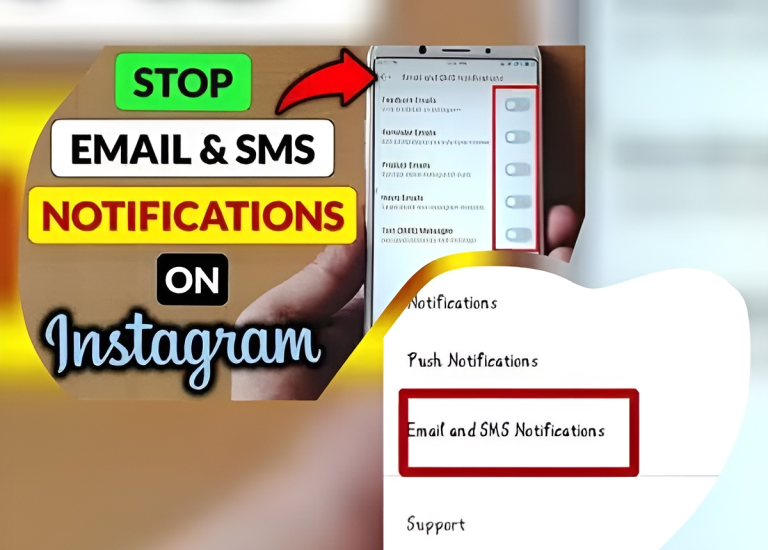
Can I stop email and SMS notifications from being sent via Instagram?
Along with security alerts and updates about products or accounts you follow, you may also receive email and SMS notifications from Instagram. To be aware of possible account problems, we advise enabling security-related alerts even though they can be disabled.
To modify these alerts:
Select Settings.
Toggle off the notifications by opening the Email and SMS settings.
Conclusion
Taking control of how to turn off Instagram notifications for other people’s posts is a powerful way to enhance your social media experience, helping you stay focused while still keeping up with what matters most.
Now that you know how to customize your settings, let’s try it out today and enjoy a more personalized, distraction-free experience. Was this guide helpful? Do you have any additional tips or questions? Let us know in the comments below; we’re here to help!
Why can’t I find the option to turn off Reels notifications on my iPhone?
Reel notifications can be managed through your iPhone’s notification settings, as Instagram may not offer a direct option.
How do I turn off push notifications for Instagram?
Go to your phone’s settings and turn off push notifications for the app.
How do I stop getting notifications from someone’s story on Instagram?
Visit the user’s profile and turn off story notifications.
Can I stop getting Reel notifications on my lock screen?
You can manage Instagram’s push notifications in your phone’s settings.
How do I turn off Instagram notifications for live videos?
Go to Instagram Settings and toggle off notifications for live videos.